
Sell servers from your own WHMCS
Your customers order, pay and manage their server in your client area, under your brand. Delivery is automatic and each server is paid from your rdp.monster balance.
Download the moduleRead the install stepsRequirements
| WHMCS | PHP | Status |
|---|---|---|
| 8.11 | 8.2 | Compatible, tested from order to termination |
| 9.0, 9.1 | 8.2 to 8.4 | Compatible, including the Nexus theme |
| 8.0 to 8.13 | 7.2 to 8.3 | Should work, not tested yet |
| 7.10 | 7.2 to 7.4 | Best effort |
You also need the PHP cURL extension, outbound HTTPS, the WHMCS cron every 5 minutes, and HTTPS on your WHMCS for the browser console and instant notifications.
In your account, under API: create a key with vps:read, vps:write and billing:read, add your WHMCS server's IP to its allowed IPs, and fund your balance.
Install
- Upload the
modulesandincludesfolders of the archive to the root of your WHMCS, merging them with the existing ones. - Go to System Settings > Addon Modules and activate the module.
- The setup wizard opens. If WHMCS refuses access, tick your administrator role under Configure > Access Control, then open it from the Addons menu.
Setup wizard
Six steps. Everything can be changed later.
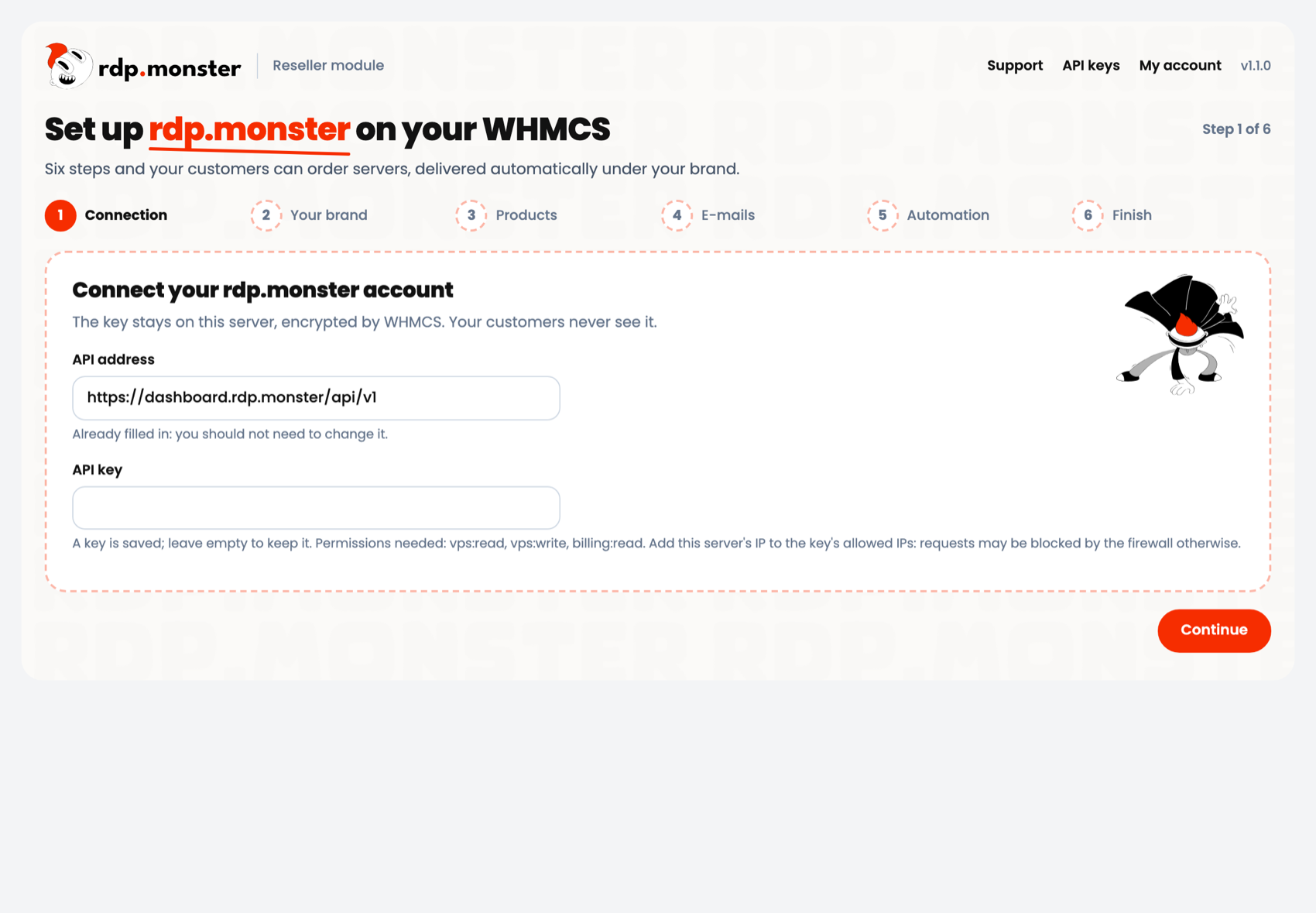
1. Connection
API address and key, tested before anything is saved. The key stays on your server.
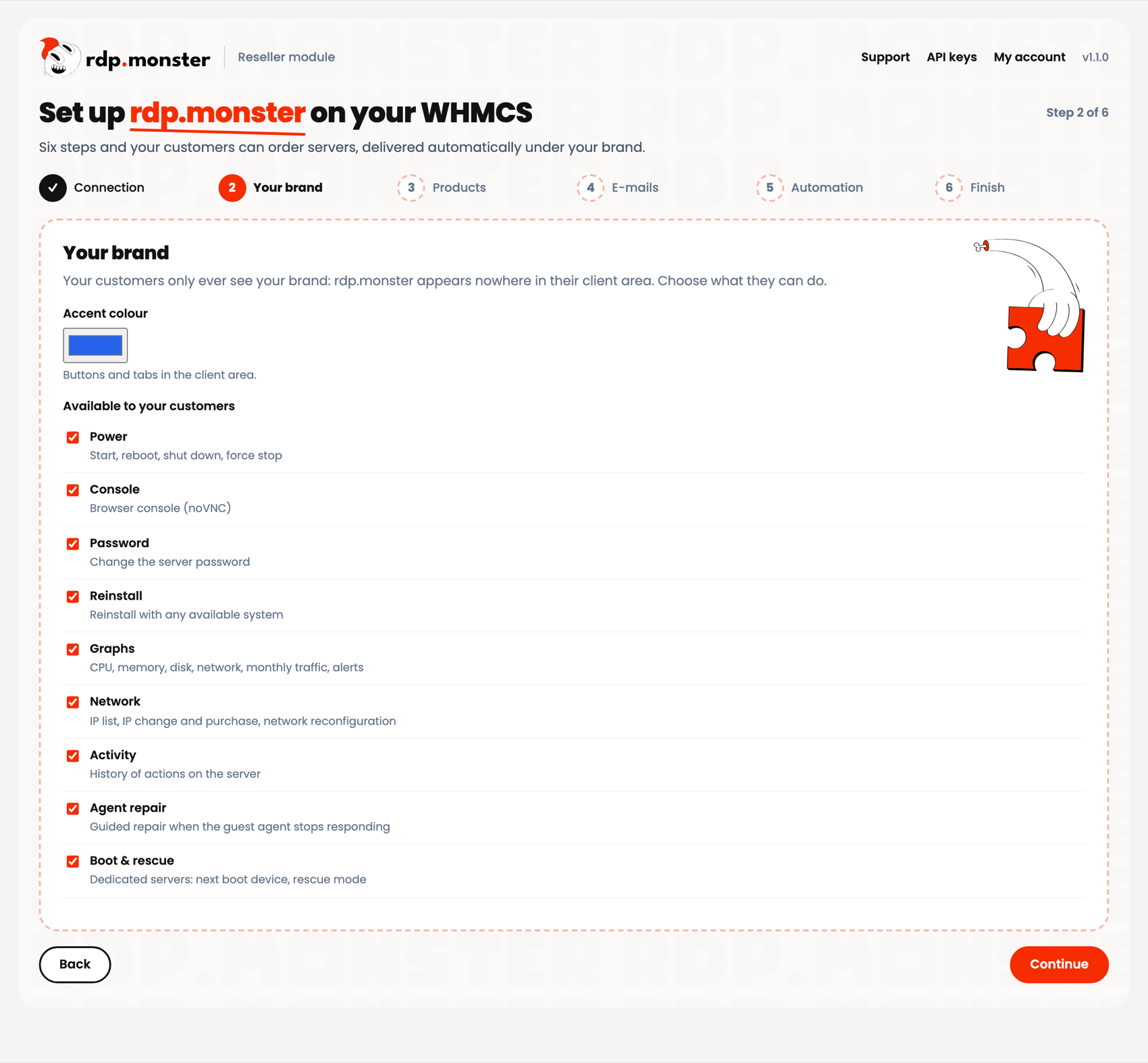
2. Your brand
Accent colour, and what customers are allowed to do.
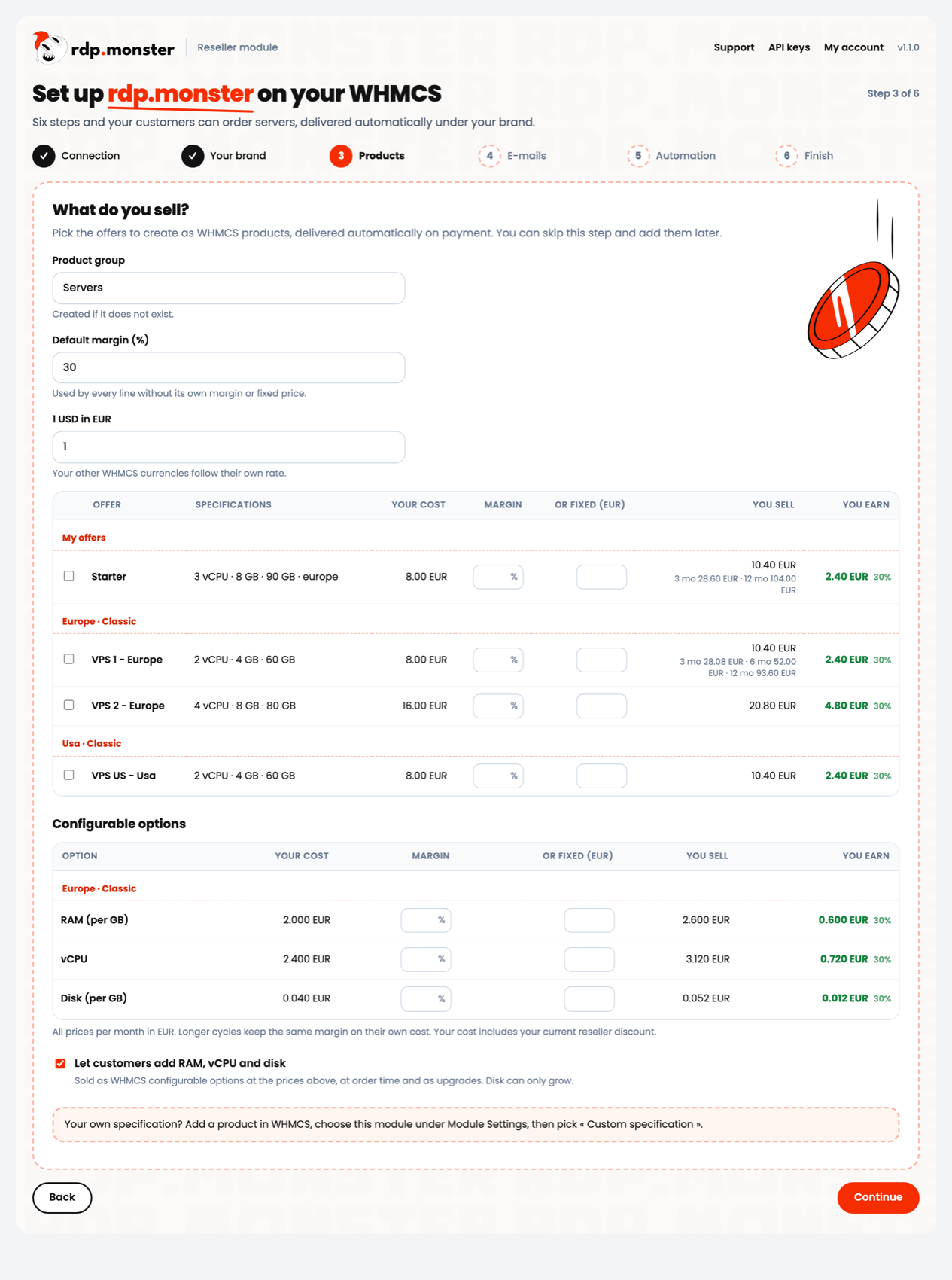
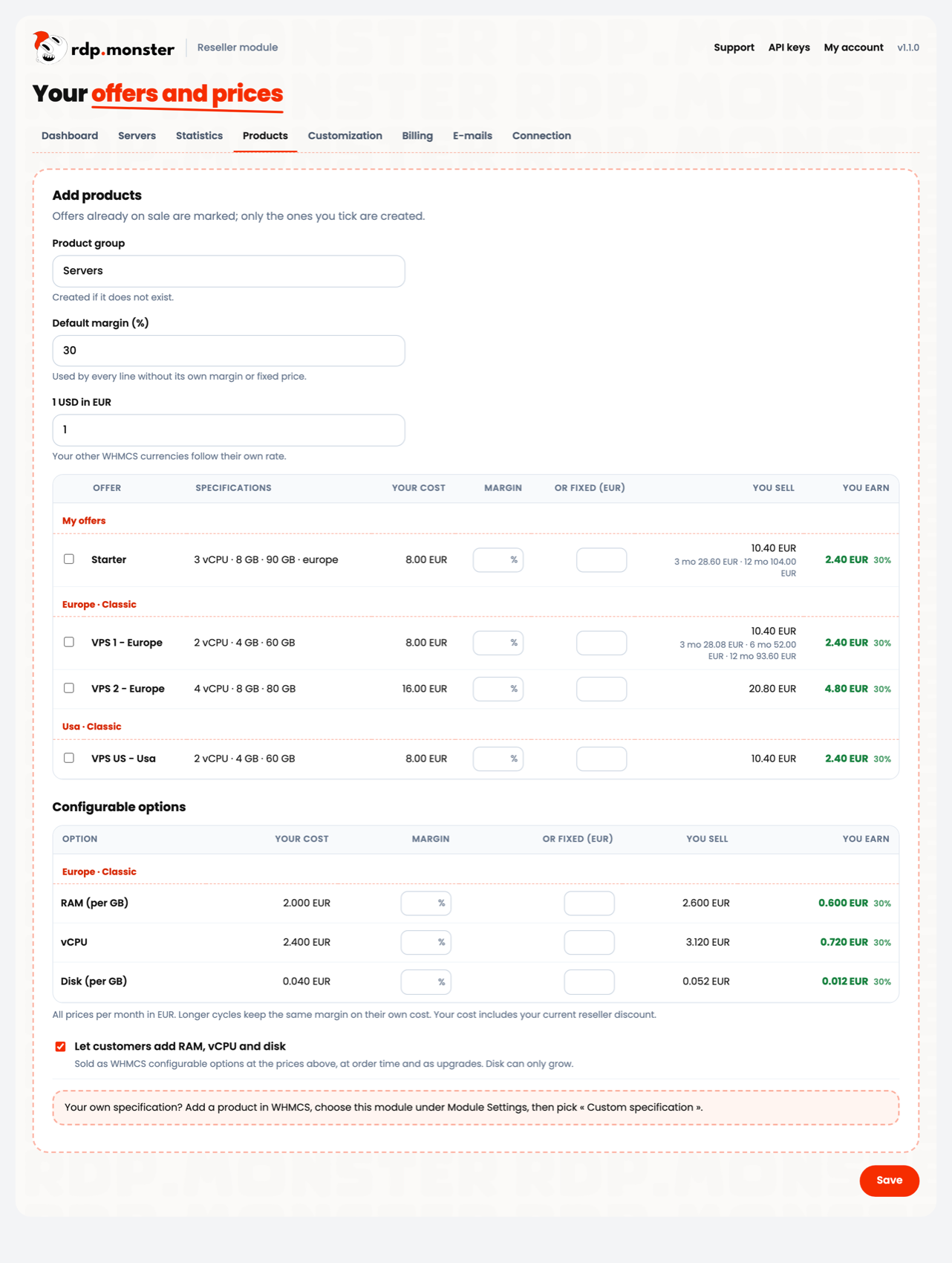
3. Products
Tick offers and set a margin or fixed price for each, and for RAM, vCPU and disk options. Cost, selling price and earnings update as you type.
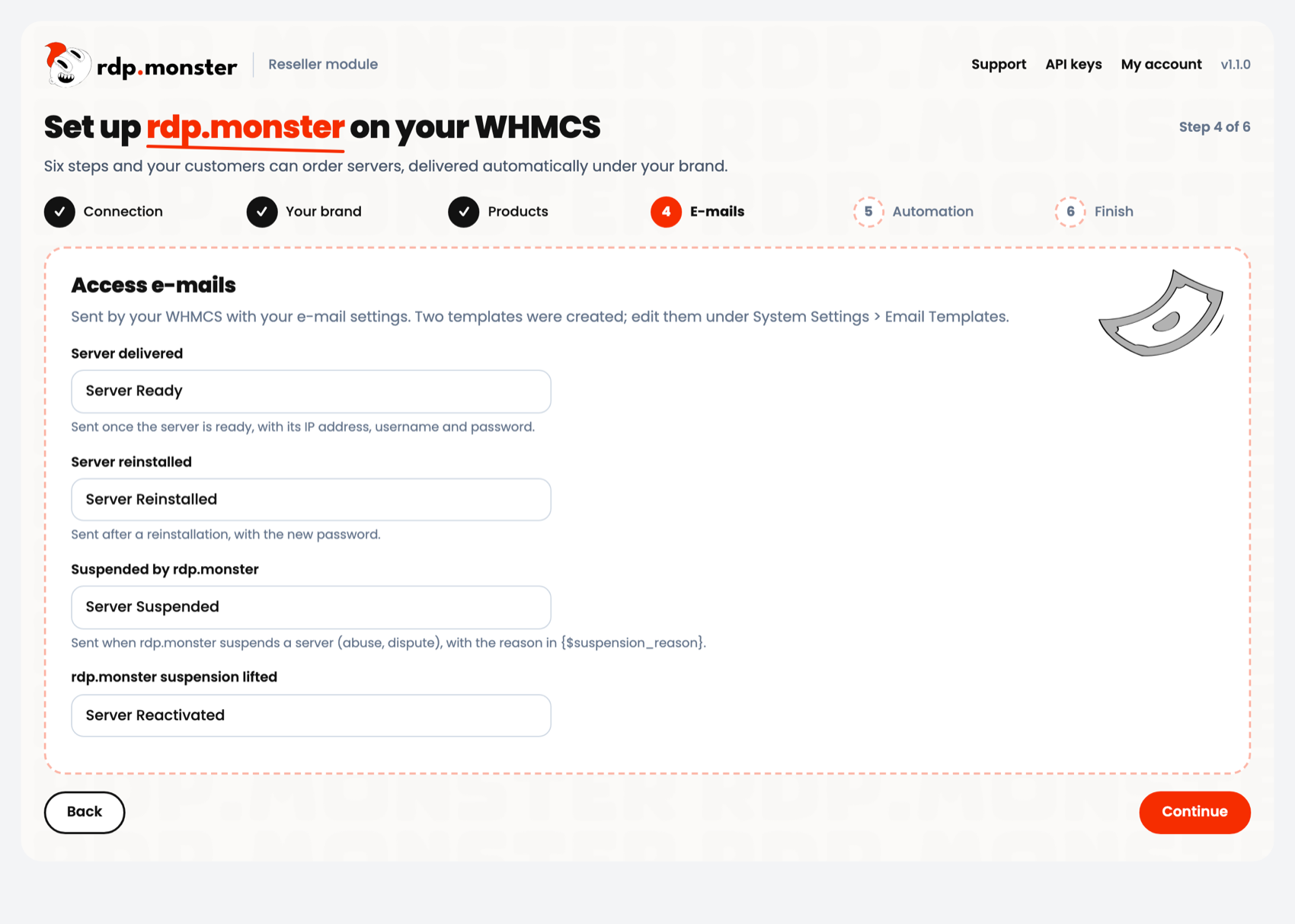
4. E-mails
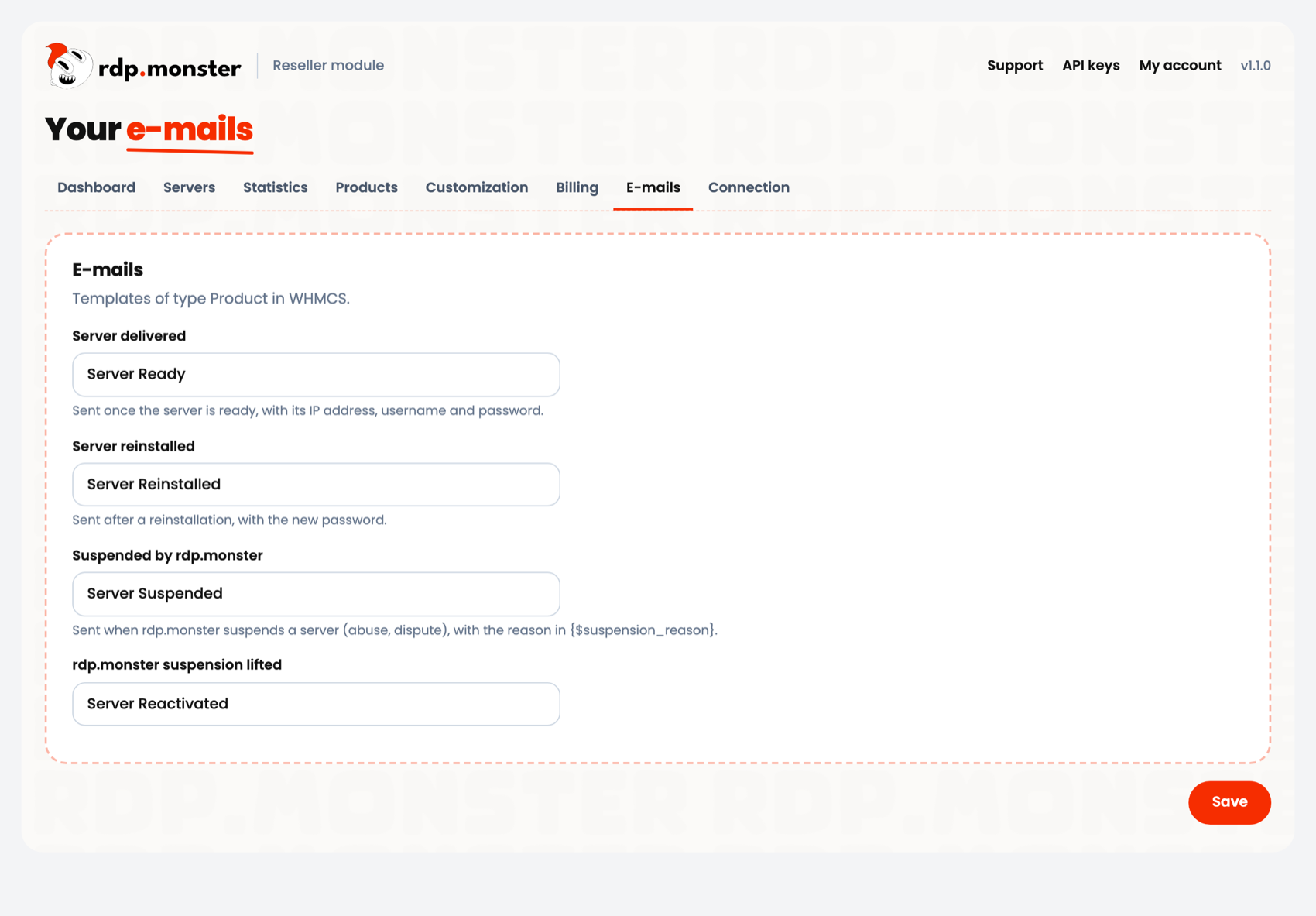
Templates sent when a server is delivered or reinstalled. Edit them under System Settings > Email Templates.
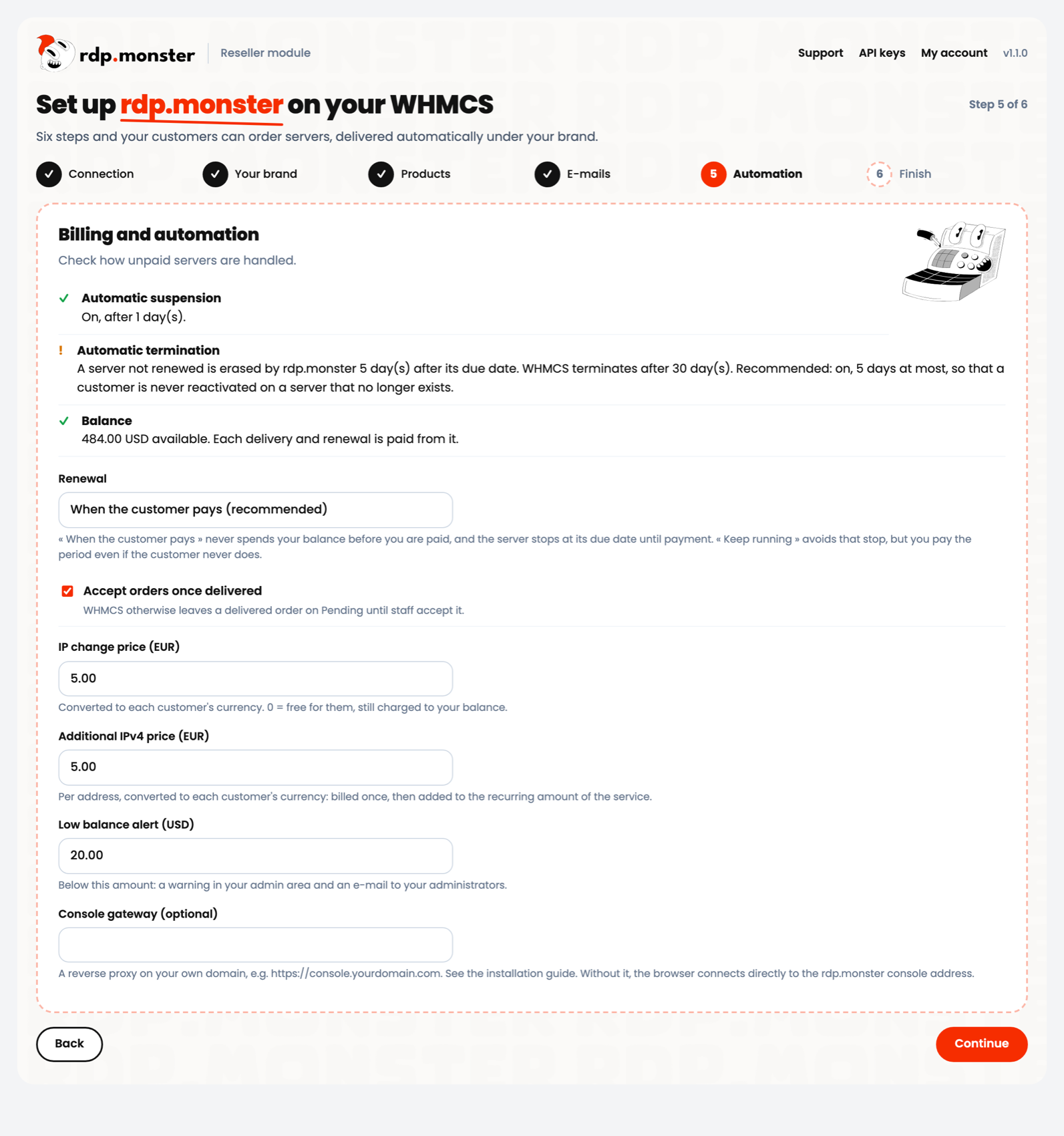
5. Automation
Checks on unpaid servers, renewal policy, IP prices and optional console gateway.
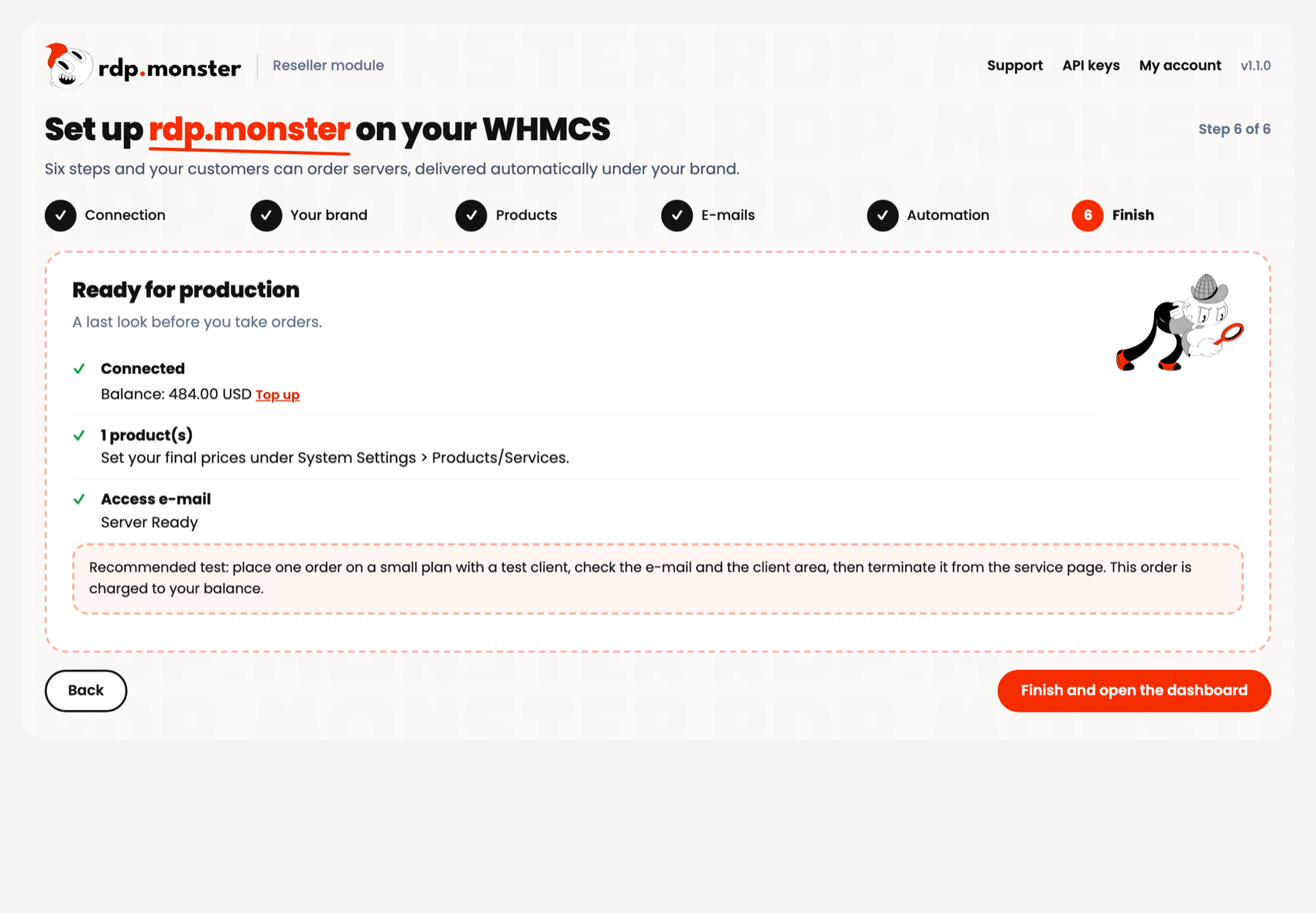
6. Finish
A last check. Place one test order with a test client: it is charged to your balance. Terminate it from the service page afterwards.
Offers and prices
The Products page adds offers at any time. Offers already on sale are marked. Prices are yours: the module never changes them. If a monthly price falls below your cost, the product appears under Sold at a loss on the dashboard.
Your own specification
Add a product in WHMCS, choose this module under Module Settings, then Custom specification, and set region, range, vCPU, RAM, disk and IPv4. Use type Other, monthly, quarterly, semi-annual or annual cycles, and leave the Welcome Email empty.
Upgrades
Products of the same region and range can change plan through the standard WHMCS upgrade page. RAM, vCPU and disk are sold as configurable options; disk can only grow. A smaller plan or less RAM or vCPU applies at the next due date. You can rename products and move them between groups.
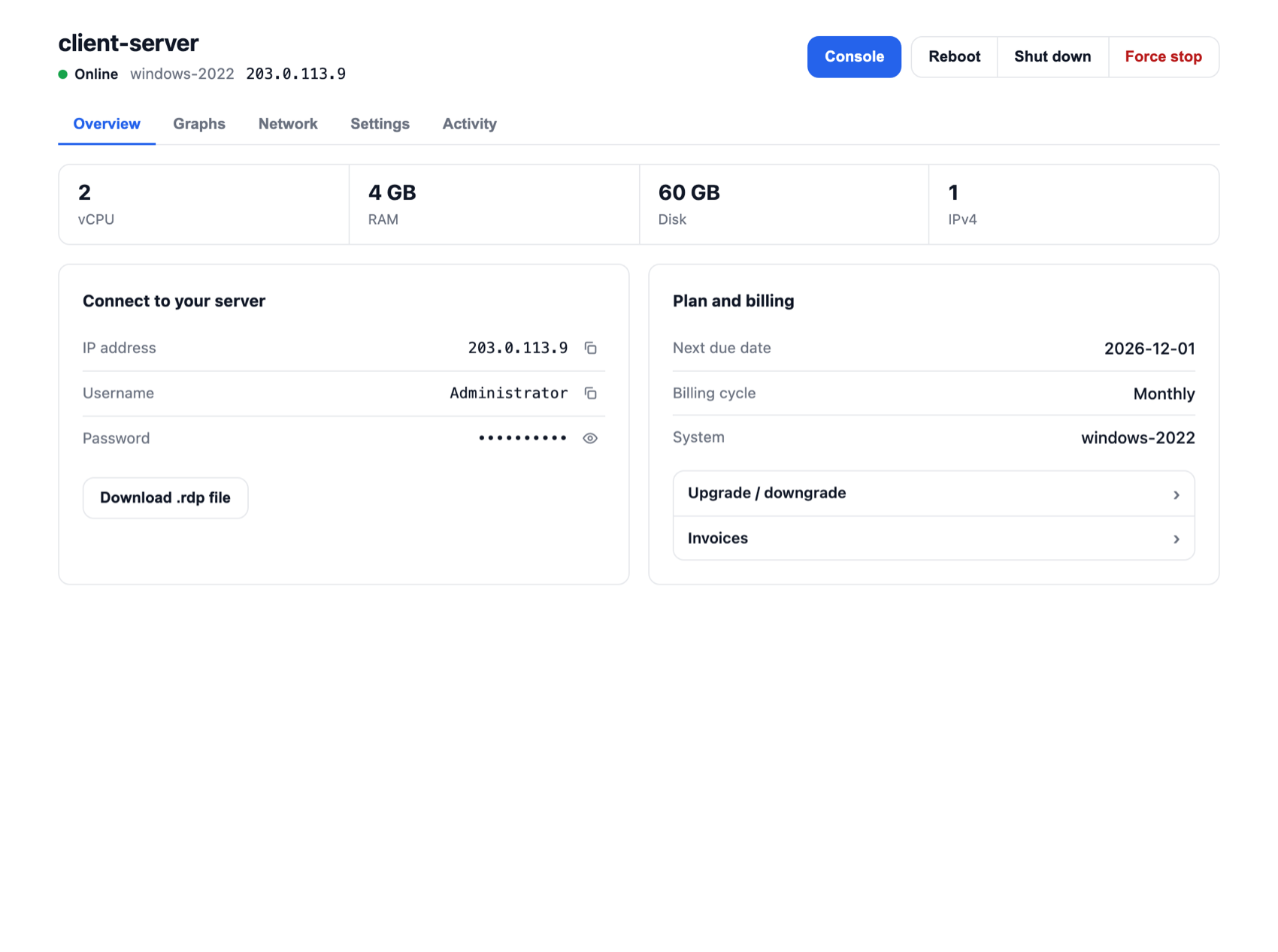
Client area
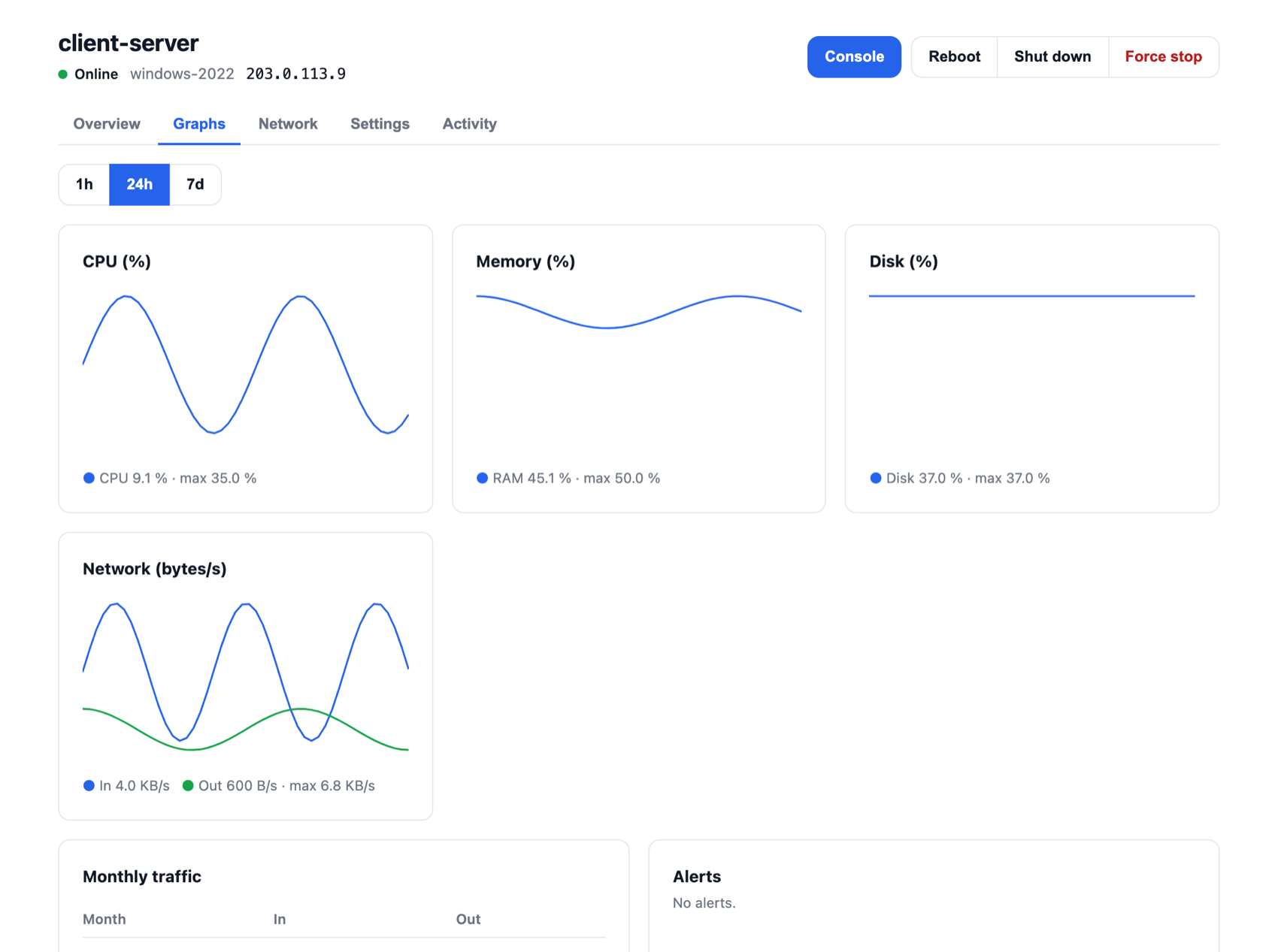
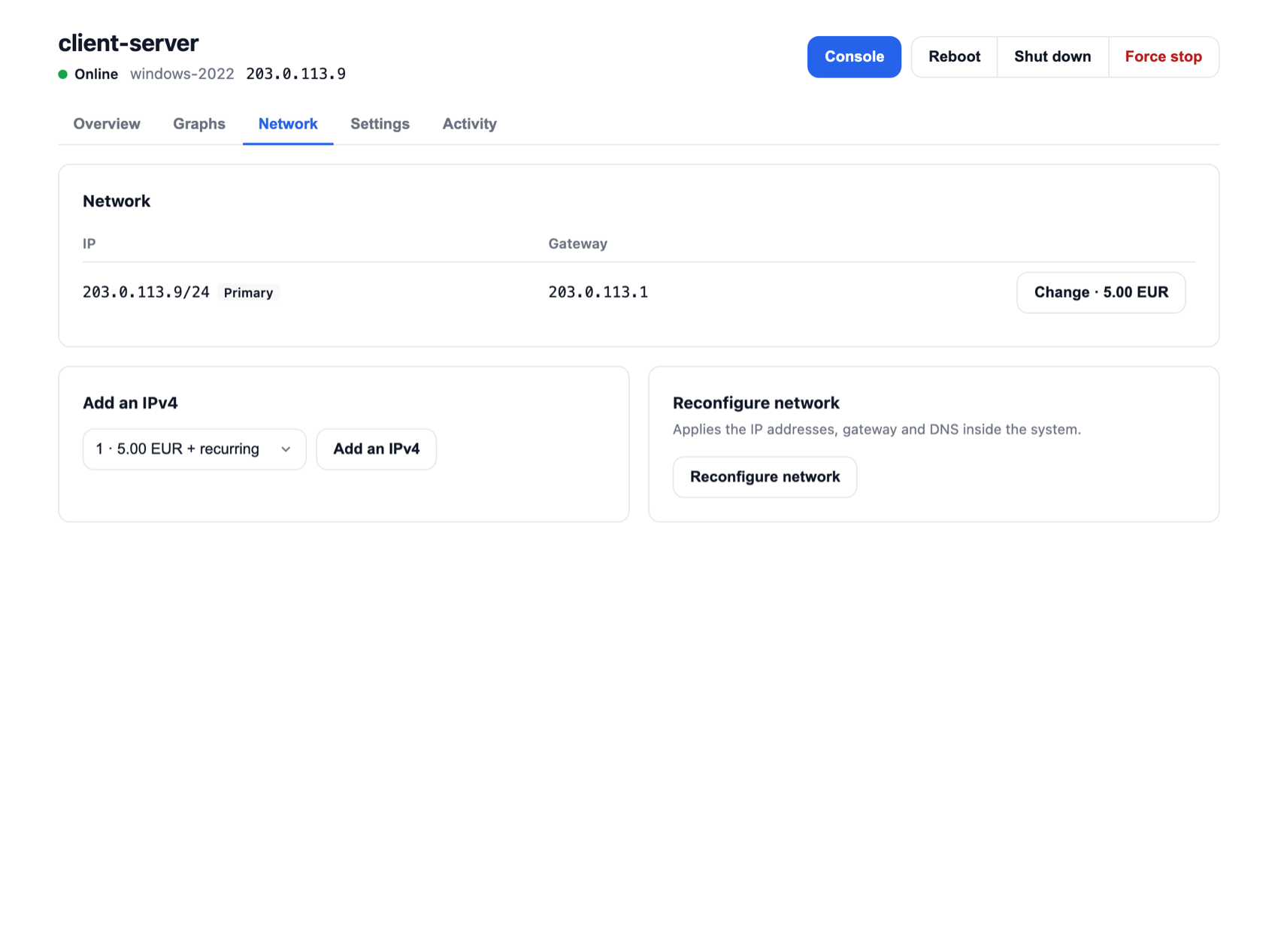
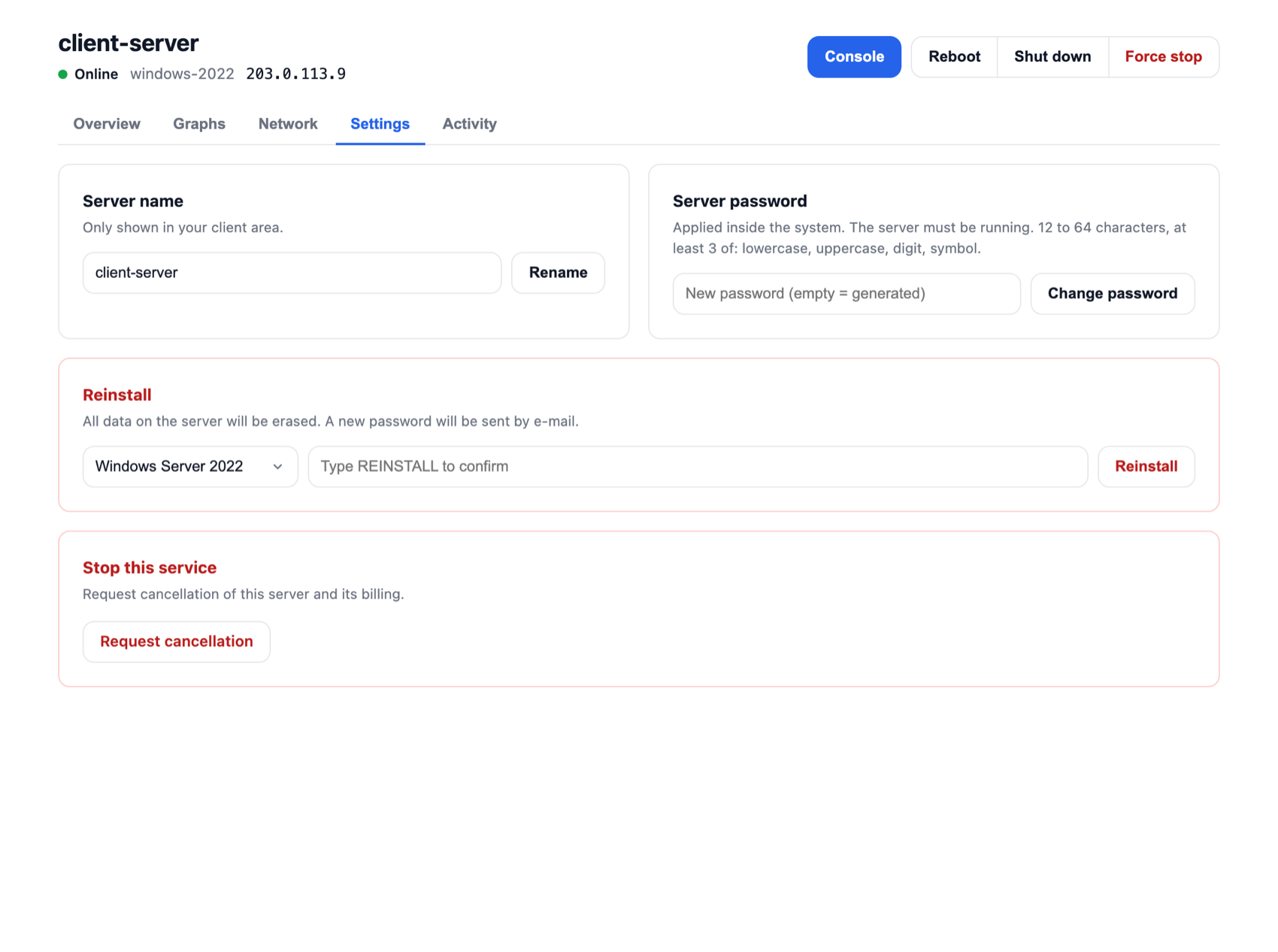
Your customers get power controls, the browser console, access details, a reinstall with any system, password change, graphs, traffic, IP purchase and change, and server history.
Customization
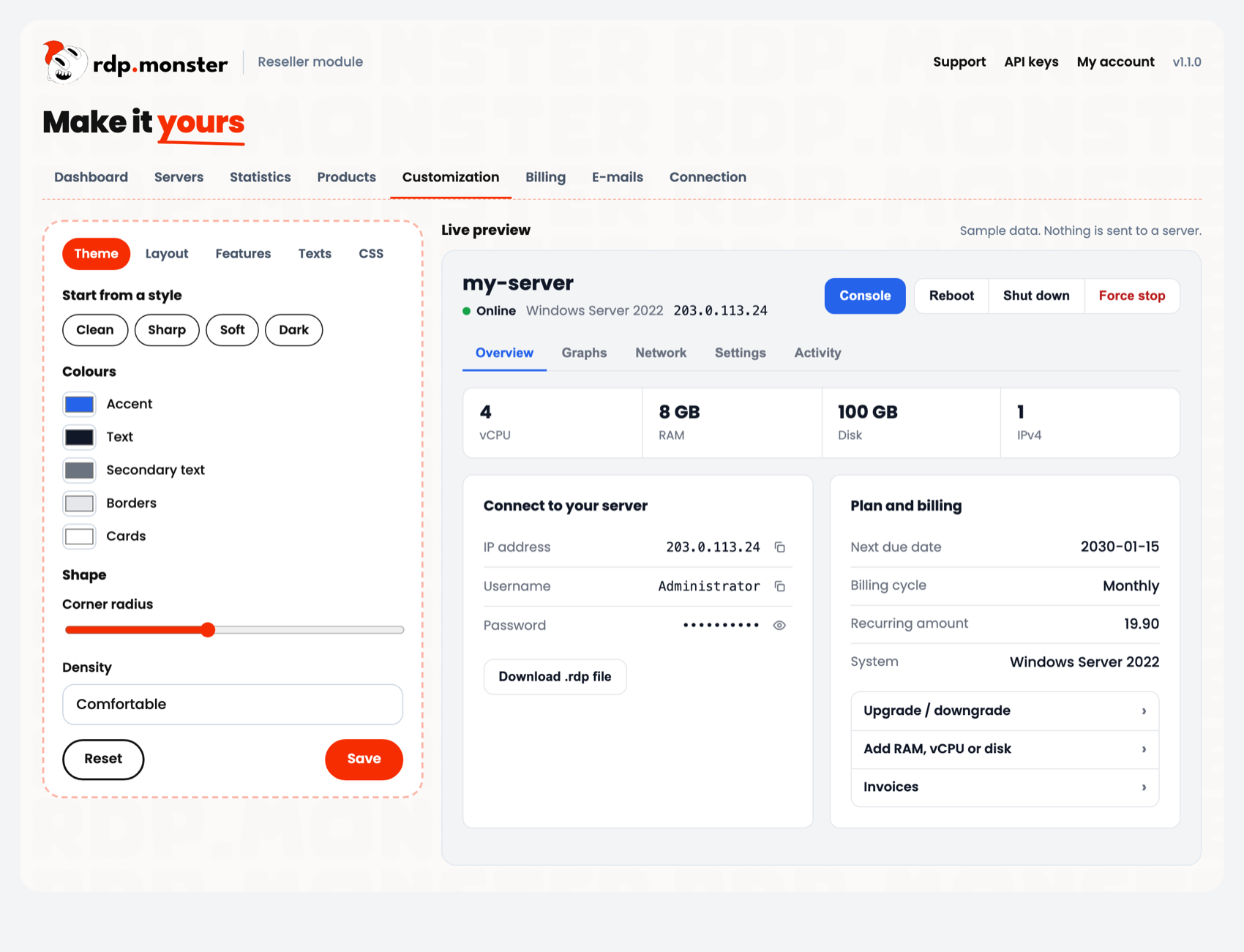
With a live preview: style presets, colours, corner radius and density; order and visibility of tabs and blocks; an announcement; available features; every text per language; and your own CSS. A feature you turn off is also refused by the server.
Servers
Every server sold through WHMCS, with customer, IP, both statuses and both due dates, and a Sync button.
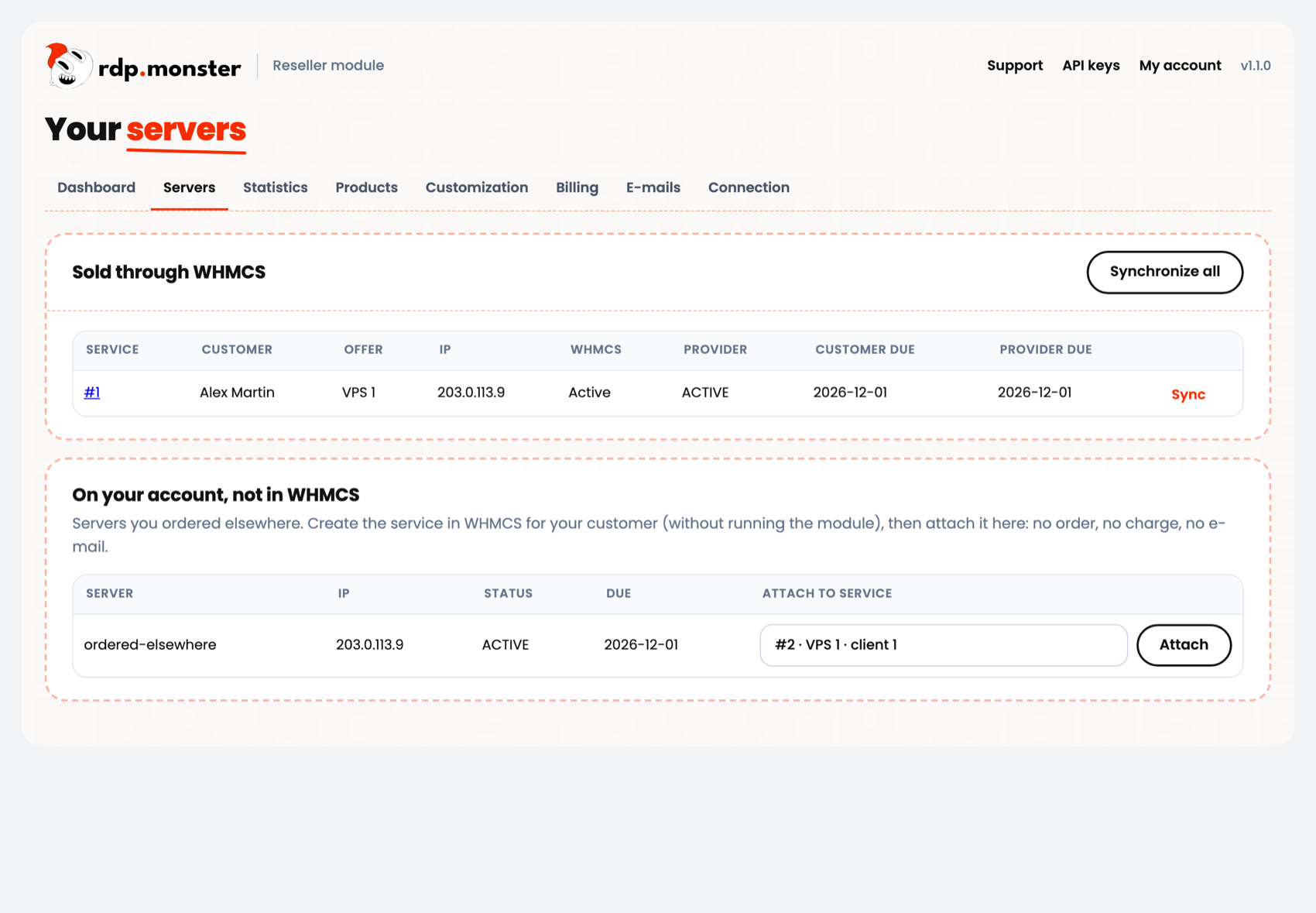
Attach a server you already have
- Create the service in WHMCS for your customer, without running the module.
- On the Servers page, pick that service next to the server and click Attach. You can also enter the server id in the Remote server field of the service page.
No order, no charge, no e-mail. IP and access details are copied to WHMCS.
Dashboard and statistics
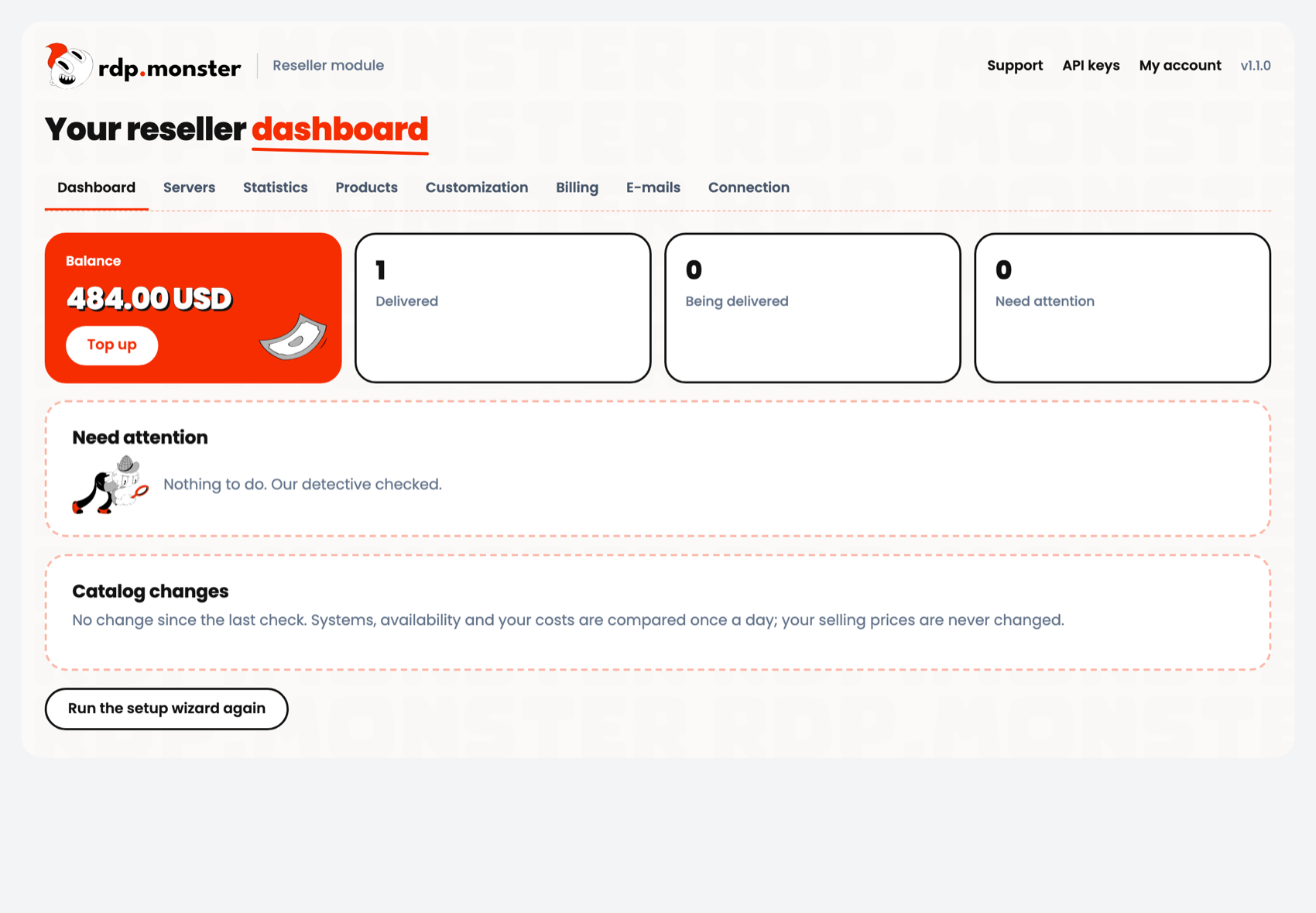
Balance with a top-up link, reseller tier, servers needing attention, catalog changes and products sold at a loss. A warning appears across your admin area when your balance falls below your threshold.
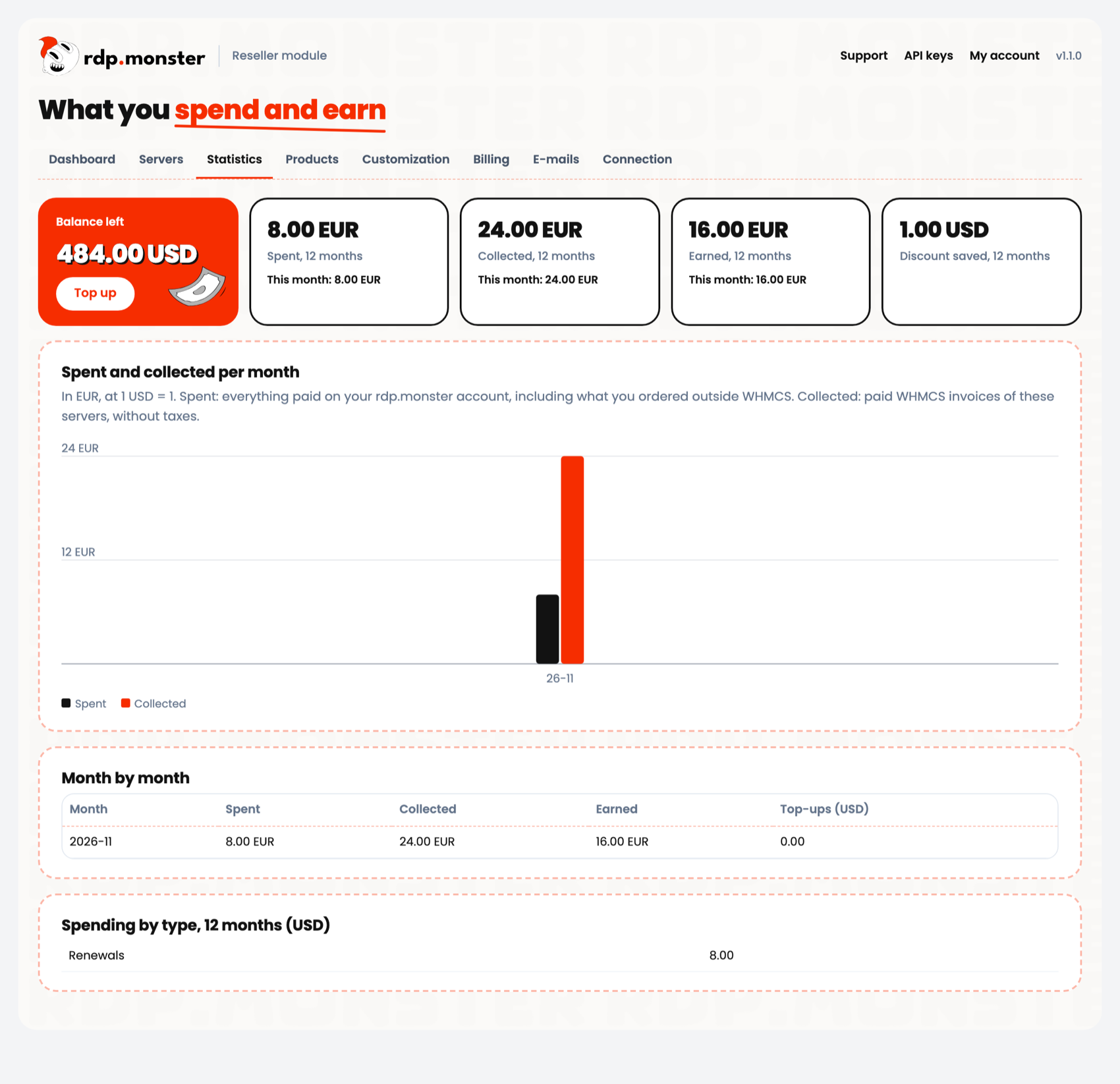
Statistics show what you spent, collected and earned per month. « Spent » covers your whole account, including orders placed outside WHMCS.
Renewals and unpaid servers
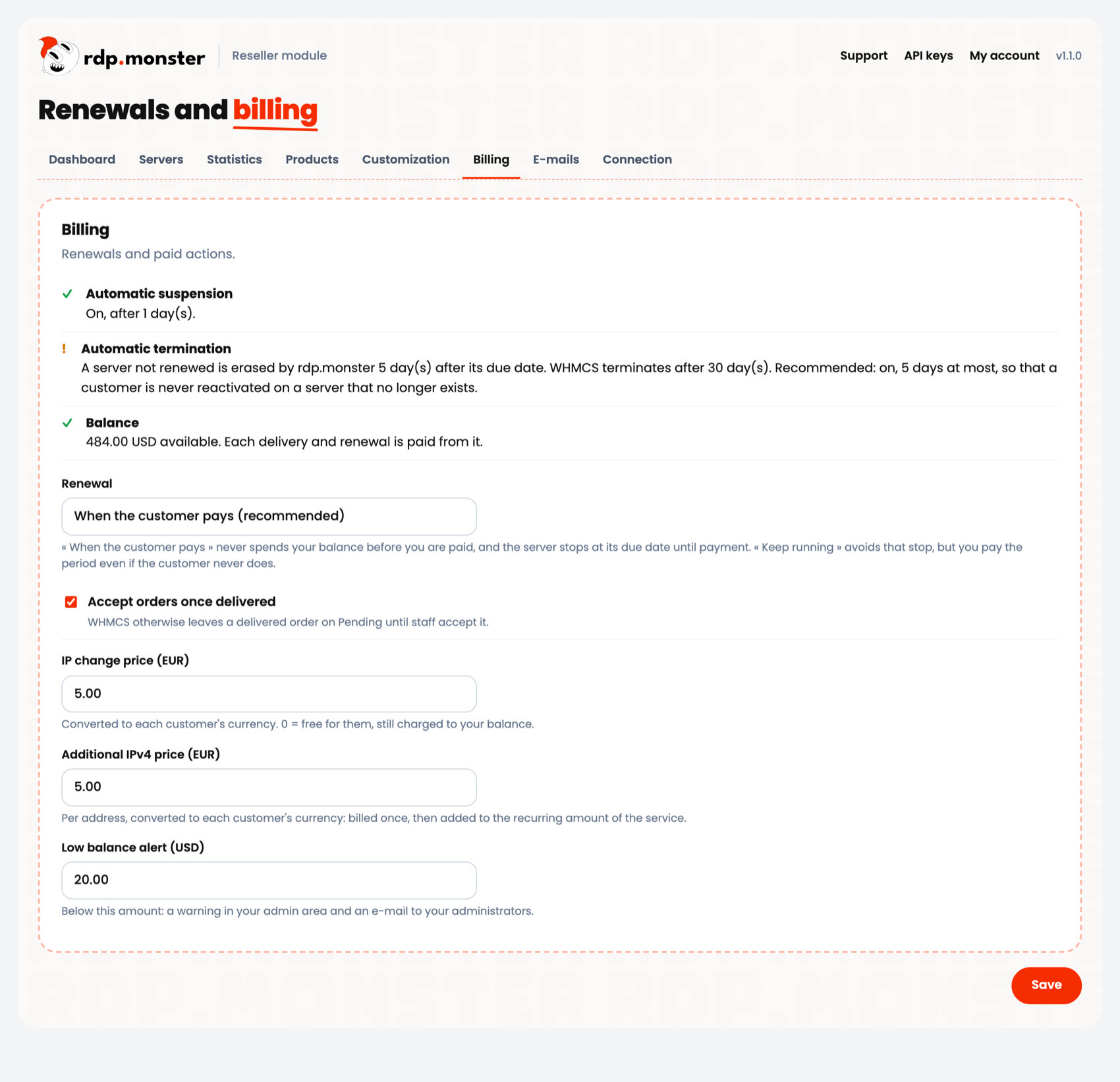
WHMCS bills your customer. When the customer's due date moves past the server's, the module pays one period from your balance. A period is never paid twice.
By default, a server not renewed stops at its due date and is erased after the retention shown on this page. Set WHMCS automatic termination to that number of days at most. With « Keep running », the server renews from your balance even if your customer has not paid. If your balance is too low, your administrators are alerted and the renewal is retried.
Suspensions
If a server is suspended for abuse or a payment dispute, WHMCS suspends the service with its reason, shown on the service page, in the client area and by e-mail. If a new IP can solve it, your customer can buy one from the client area and the suspension lifts automatically. Otherwise only support can lift it, and the WHMCS Unsuspend button shows an error.
E-mails and languages
Access e-mails leave from your WHMCS with your settings. English and French versions are created, and WHMCS picks the customer's language.
The admin pages follow your WHMCS administrator language (English or French). To add a client area language, copy modules/servers/vpsautomation/lang/english.php to <whmcs language name>.php and translate the values.
Console on your domain
Optional. The browser opens a WebSocket to the provider's console address, visible in developer tools. To use your own domain, set up a reverse proxy with WebSocket support and enter its address on the Connection page. Ask support for the console host.
server {
    server_name console.yourdomain.com;
    location / {
        proxy_pass https://PROVIDER_CONSOLE_HOST;
        proxy_ssl_server_name on;
        proxy_set_header Host PROVIDER_CONSOLE_HOST;
        proxy_http_version 1.1;
        proxy_set_header Upgrade $http_upgrade;
        proxy_set_header Connection "upgrade";
    }
}
Updating
A new version is announced on the dashboard. Download it from your reseller page and upload the modules and includes folders over the old ones. Settings, services and customizations are kept.
Troubleshooting
| You see | Do this |
|---|---|
| « Unexpected answer » | Add your server's IP to the key's allowed IPs. |
| Service stuck on « being delivered » | Check the WHMCS cron, then the dashboard and the Servers page. |
| Addon page refused | Tick your administrator role under Configure > Access Control. |
| Need details | Enable Utilities > Logs > Module Log. Passwords and keys are masked. |
The API behind the module is documented in your API docs. The console includes noVNC (MPL-2.0).